admin
admin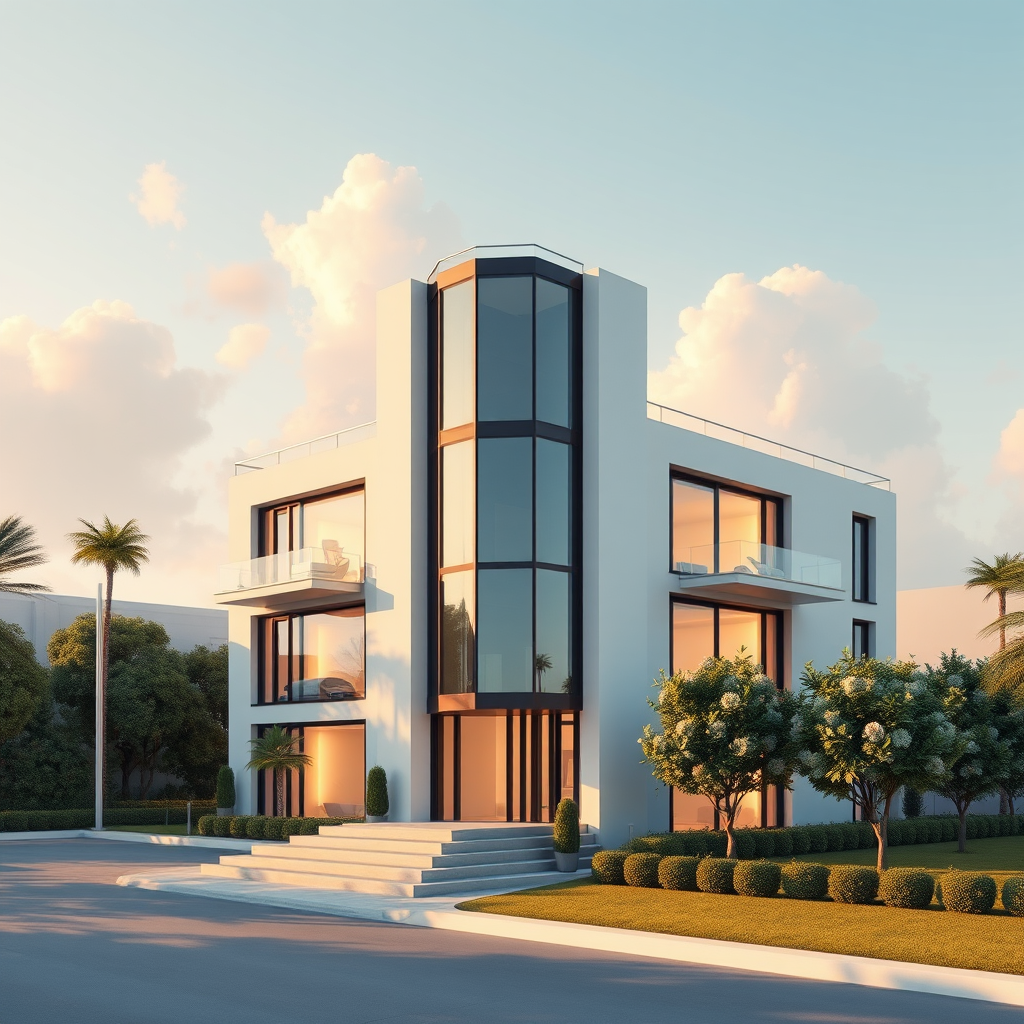
We have all been there. You spend hours perfecting the lighting, textures, and camera angles in your modeling software, finally exporting a stunning, photorealistic render. You present it to the client, proud of the visual clarity, only to be met with the question: “But how does the space feel when we move through it?” For years, the answer required diving into complex animation software, mapping out camera paths, and enduring rendering times that could tie up a workstation for days. But the rules of architectural visualization are changing.
The transition from two-dimensional drawings to photorealistic static images defined the last decade of BIM. Today, however, we are facing a new, essential frontier: the shift from static frames to dynamic storytelling powered by Artificial Intelligence. By learning to animate architectural renders with AI, professionals can bridge the gap between a beautiful picture and an immersive experience, all without the traditional heavy overhead of video production.
Why Is AI Animation Essential for Modern Client Presentations?
Why are static images no longer enough to win competitive bids? In a fast-paced market, clients are increasingly influenced by cinematic content found on social media and real estate platforms. A static image captures a moment, but a video captures a narrative. AI animation tools allow you to breathe life into a still render, adding elements like moving clouds, flowing water, or subtle camera pans that guide the viewer’s eye.
Consider the before-and-after scenario of a recent project. A standard suite of static high-res renders might show a lobby from three fixed angles. It is precise, but it is also sterile. By applying AI video generation to those exact same images, you can create a slow, cinematic dolly shot that mimics the experience of walking into the space. This workflow doesn’t just look impressive; it helps clients emotionally connect with the design before ground is even broken. Studies suggest that video content can increase client engagement rates by over 80% compared to static imagery, making this transition not just a luxury, but a competitive necessity.
How Can You Integrate AI Tools into Your Existing BIM Workflow?
How do you add motion to your project without rebuilding your entire BIM model or learning complex keyframing in software like 3ds Max? The beauty of modern AI architecture generators lies in their post-production capabilities. The most effective workflow treats your existing rendering engine—whether it’s Enscape, Twinmotion, or V-Ray—as the foundation. You do not need to model complex motion paths or calculate heavy physics simulations.
Here is the practical workflow: First, finalize your high-resolution still renders exactly as you normally would within your BIM software. Ensure your lighting and materials are perfect. Once exported, upload these static images into an AI video platform. These tools utilize generative adversarial networks (GANs) to predict and generate the pixels that exist “between” the frames or add motion vectors to static elements.
For example, you can render a street view of a commercial building with cars and trees frozen in time. Using an AI video tool, you can apply specific motion prompts—such as “slow traffic movement” or “wind in trees”—and the software will animate these elements realistically. This method transforms a standard render into a living scene in minutes rather than the hours it would take to simulate and render these movements traditionally. It is a game-changing approach that decouples visual quality from render farm time.
Which AI Features Should You Use to Create Professional Results?
What specific features within these AI tools should you master to ensure the output looks professional and not like a glitchy experiment? While the technology is powerful, the key to success lies in control. You need to utilize “motion brushes” or “region-specific prompting.” These features allow you to mask specific areas of your render to animate independently.
Imagine you have a beautiful interior render of a living room with a large window showing a pool outside. You want the water to ripple but you do not want the furniture to move. By using a motion brush to mask only the pool area, you instruct the AI to limit its generation to that specific zone. This prevents common AI artifacts, such as “melting” walls or shifting furniture, which can ruin the realism of the video.
Furthermore, pay attention to “camera motion” settings. Instead of generating new pixels for complex object movements, sometimes the most professional result comes from a simple “2D zoom” or “pan” effect that mimics a camera slider. This maintains the photorealistic integrity of your original render while providing the dynamic feeling of video. Mastering these subtle controls ensures that your final output enhances your reputation for high-quality visualization rather than confusing the client with technological oddities.
Quick Implementation Tips
* Start with High-Res Base Images: AI video tools upscale and generate pixels based on source data. Always export your renders at least 4K resolution to prevent pixelation when the AI adds motion.
* Use Subtle Motion Prompts: Avoid aggressive prompts like “explosion” or “fast movement.” Stick to architectural verbs like “drift,” “ascend slowly,” or “gentle flow” to maintain realism.
* Mask Critical Elements: If your software allows, always mask architectural edges (like window frames) to prevent the AI from hallucinating weird geometries at the boundaries of motion.
* Iterate in Short Bursts: Generate 3-to-5-second clips rather than long videos. AI can lose coherence over time; stitching together short, high-quality loops is more effective for presentations.
Key Takeaway
Integrating AI to animate architectural renders transforms your delivery from a static snapshot into an immersive story, drastically reducing the time traditionally required for animation. By leveraging these post-production tools, you can provide higher value to your clients and stand out in a crowded market without overhauling your current technical workflow.